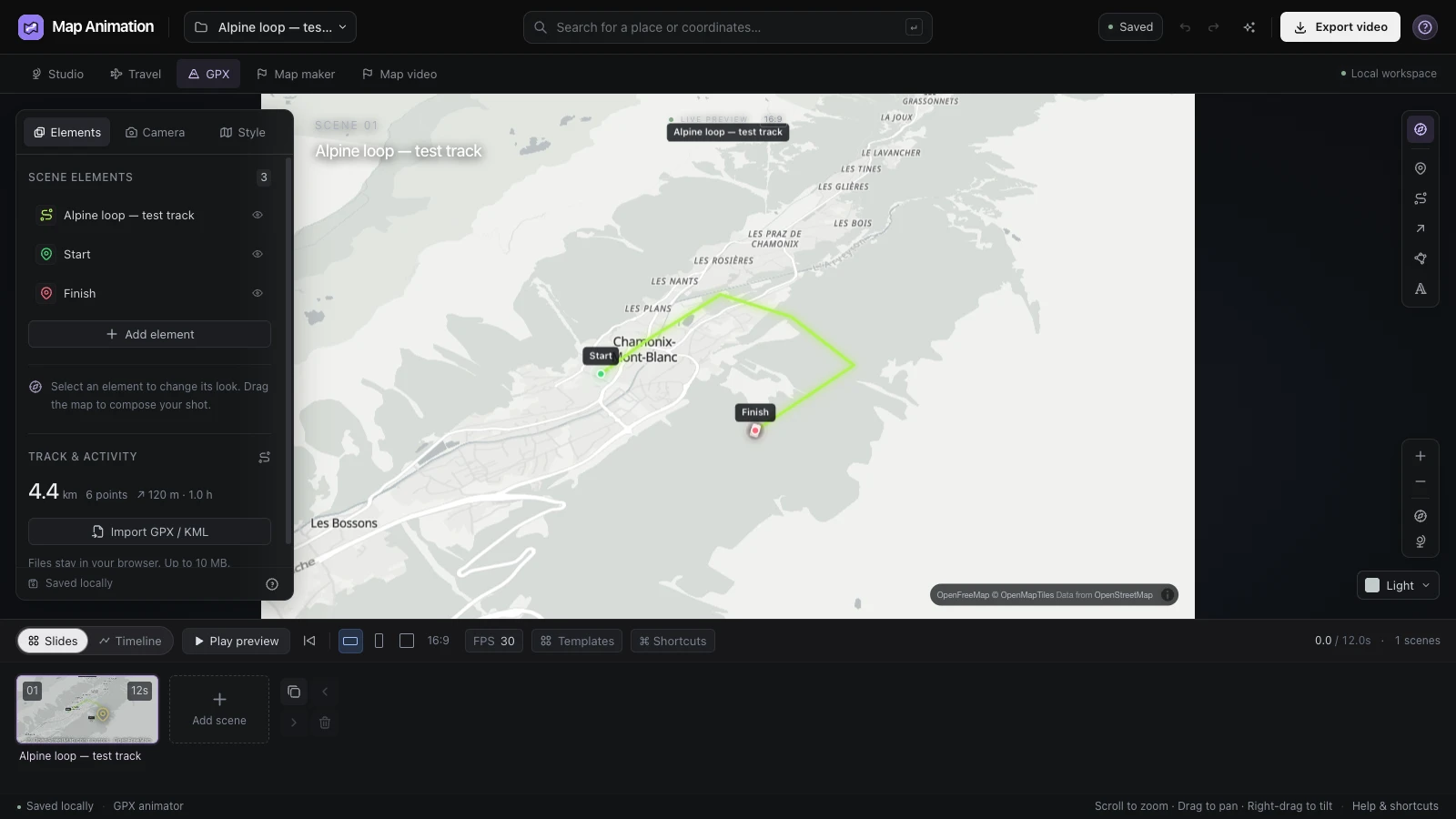
Keep the path you recorded
The GPX animator follows coordinates from your track rather than planning a new itinerary. Inspect the imported shape before deciding which sections need a closer camera view.
Give a recorded ride, run or hike a clear geographic story. Import your track into the GPX animator, refine the camera and replay duration, then export a route video for your activity recap.
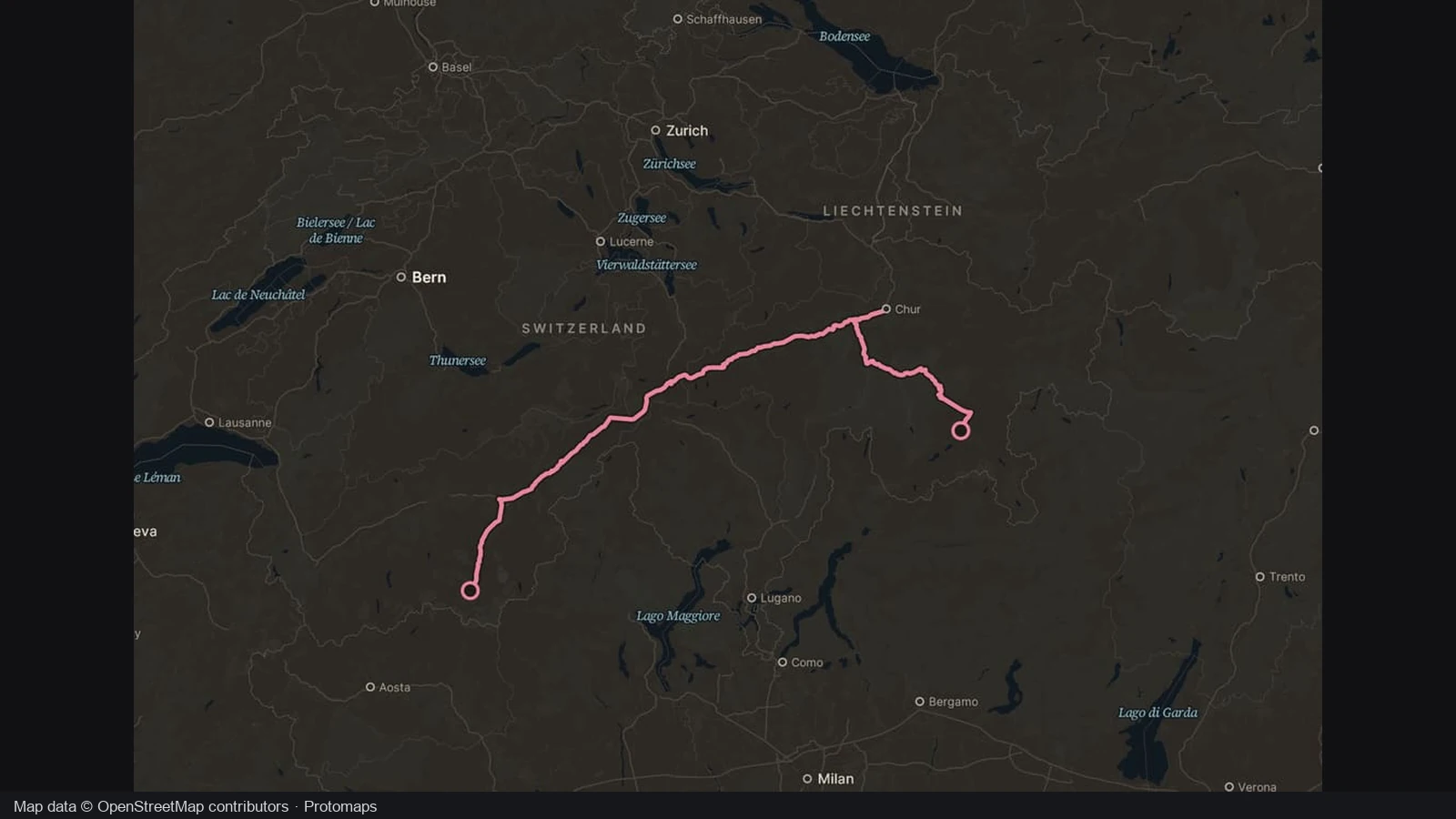
Compare the route starting view with the same recorded path during playback. The developing line connects the activity to its geographic surroundings, showing how the journey progresses rather than presenting only a finished outline.
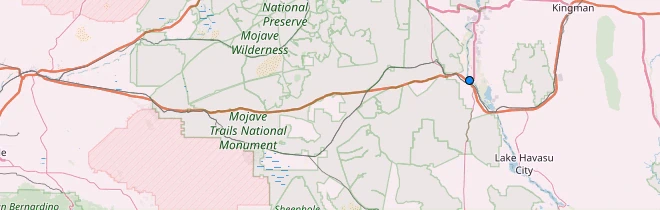
The starting frame establishes the roads and landscape around the route before the blue track develops. A recognizable geographic overview gives viewers a place to begin, especially when the activity crosses an area they have not visited.
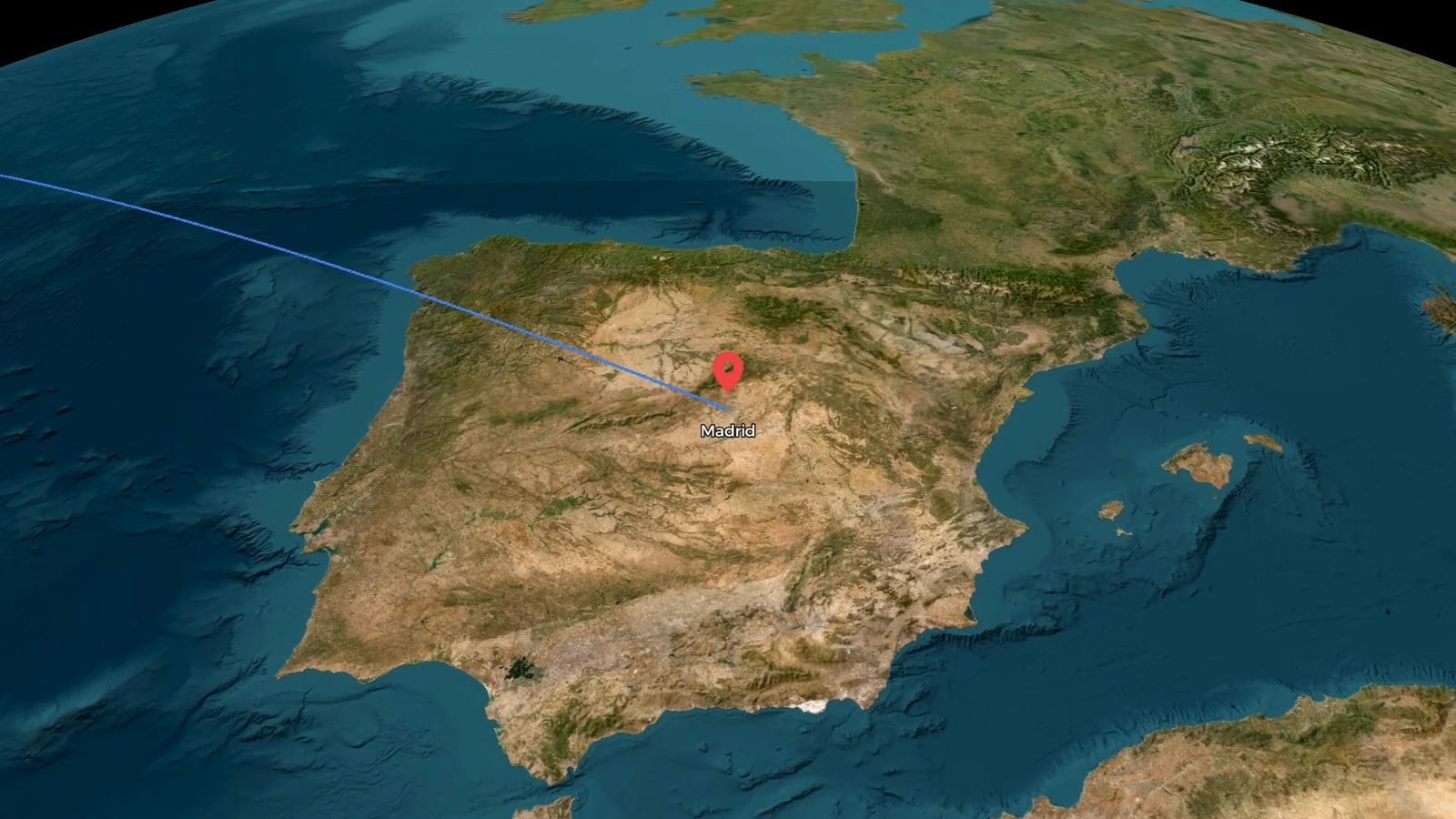
The blue line advances along the recorded path as the replay unfolds. In the GPX animator, compare progress with the camera framing and duration, then choose a pace that helps your audience follow the route without losing the wider context.
One recorded route · opening and playback
The opening still and playback follow one recorded journey. Compare how the developing track changes the geographic explanation, then use your own activity file to prepare a replay with a suitable view and pace.
Use the coordinates you already collected to explain the activity. Keep the path, camera and replay duration as separate decisions, so the presentation can change while the underlying journey stays recognizable.
The GPX animator follows coordinates from your track rather than planning a new itinerary. Inspect the imported shape before deciding which sections need a closer camera view.
Use the GPX animator to show the full journey and its surroundings. Move closer where a bend, climb or arrival needs more space in the explanation.
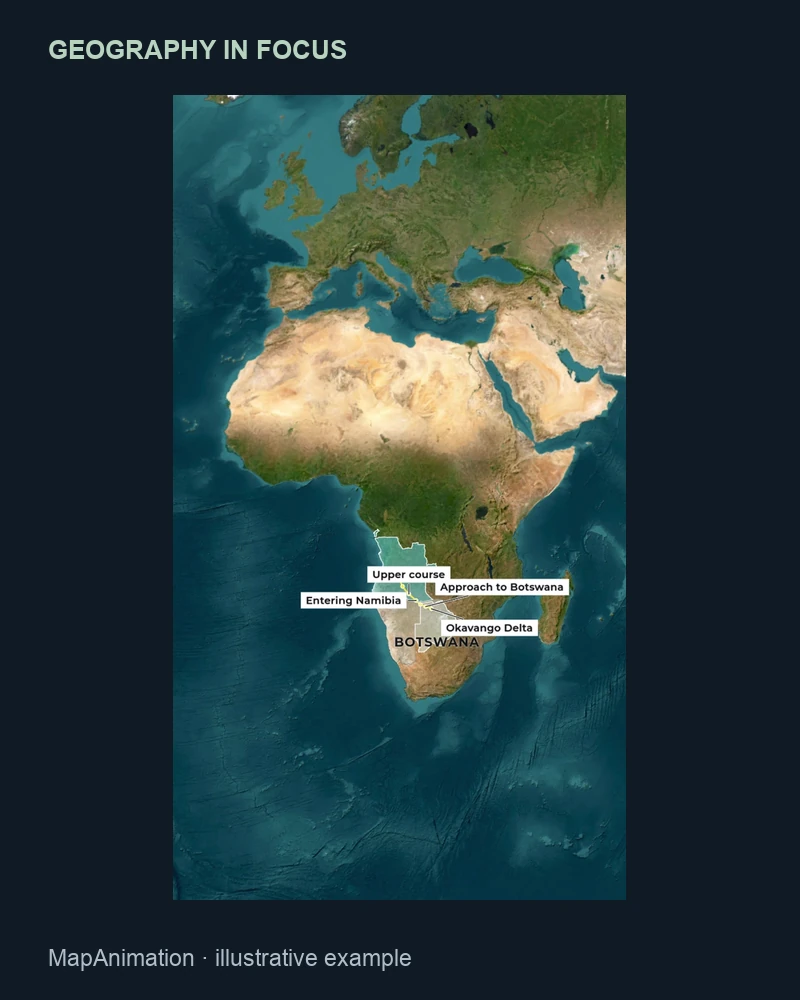
Set the scene duration to fit your recap. Separate the finished video length from the time spent completing the activity.
Download a project as well as the finished clip. Reopen the project to adjust camera framing, labels or timing when you prepare another version of the activity.
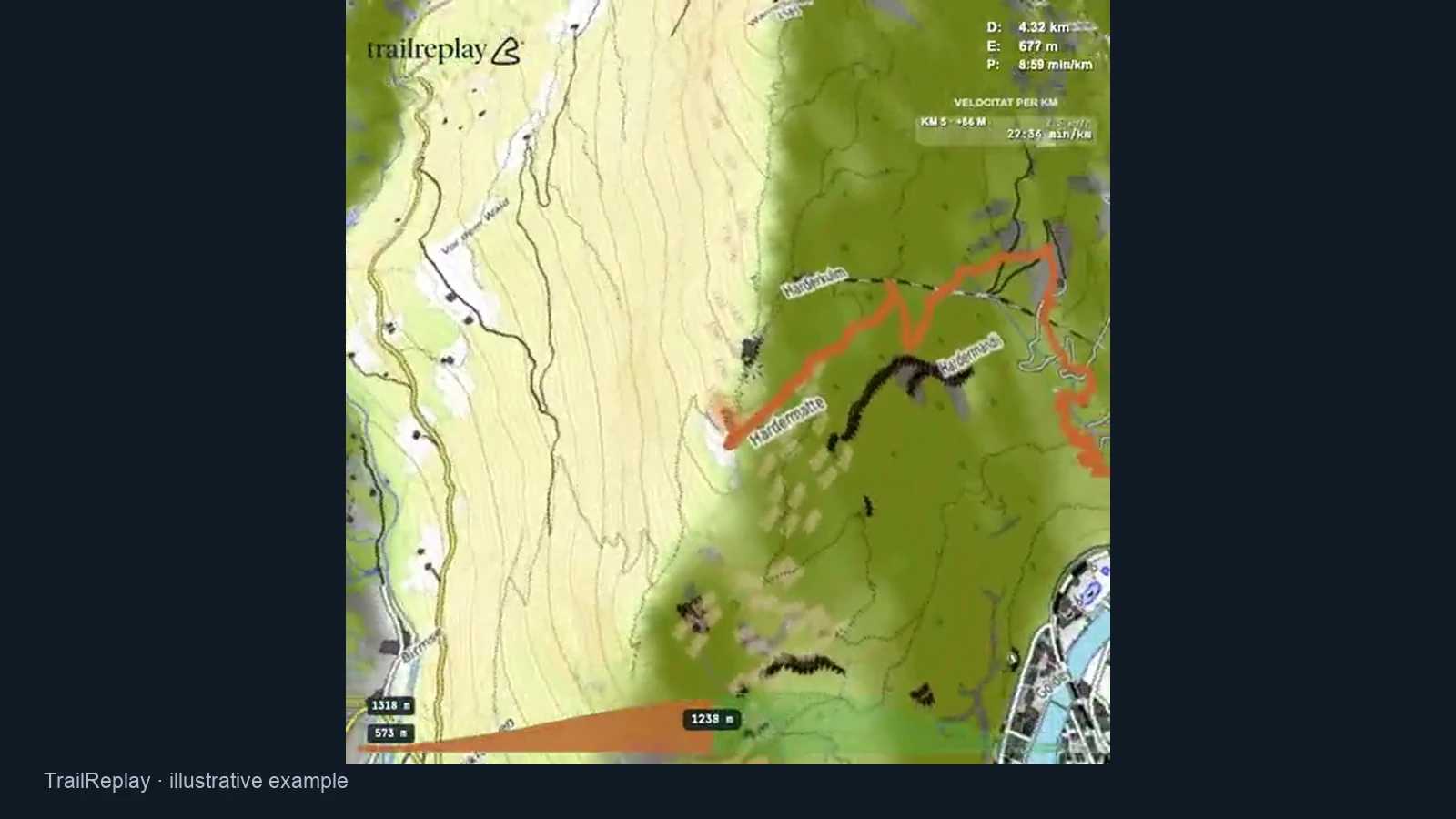
Load one continuous GPX or KML track and inspect its path on the map. The GPX animator uses the supplied coordinates, giving an activity recap a recorded geographic foundation instead of requiring you to recreate the route from named stops.
Open the editor
Add labels where they explain a start, destination or important location along the route. Keep the path visible while you add that context, helping viewers connect the places mentioned in your story with the activity on screen.
Open the editor
Use a regional overview to establish the setting, then choose closer framing for the sections that matter. Camera and scene choices shape the explanation while the recorded route remains the geographic basis of the replay.
Open the editor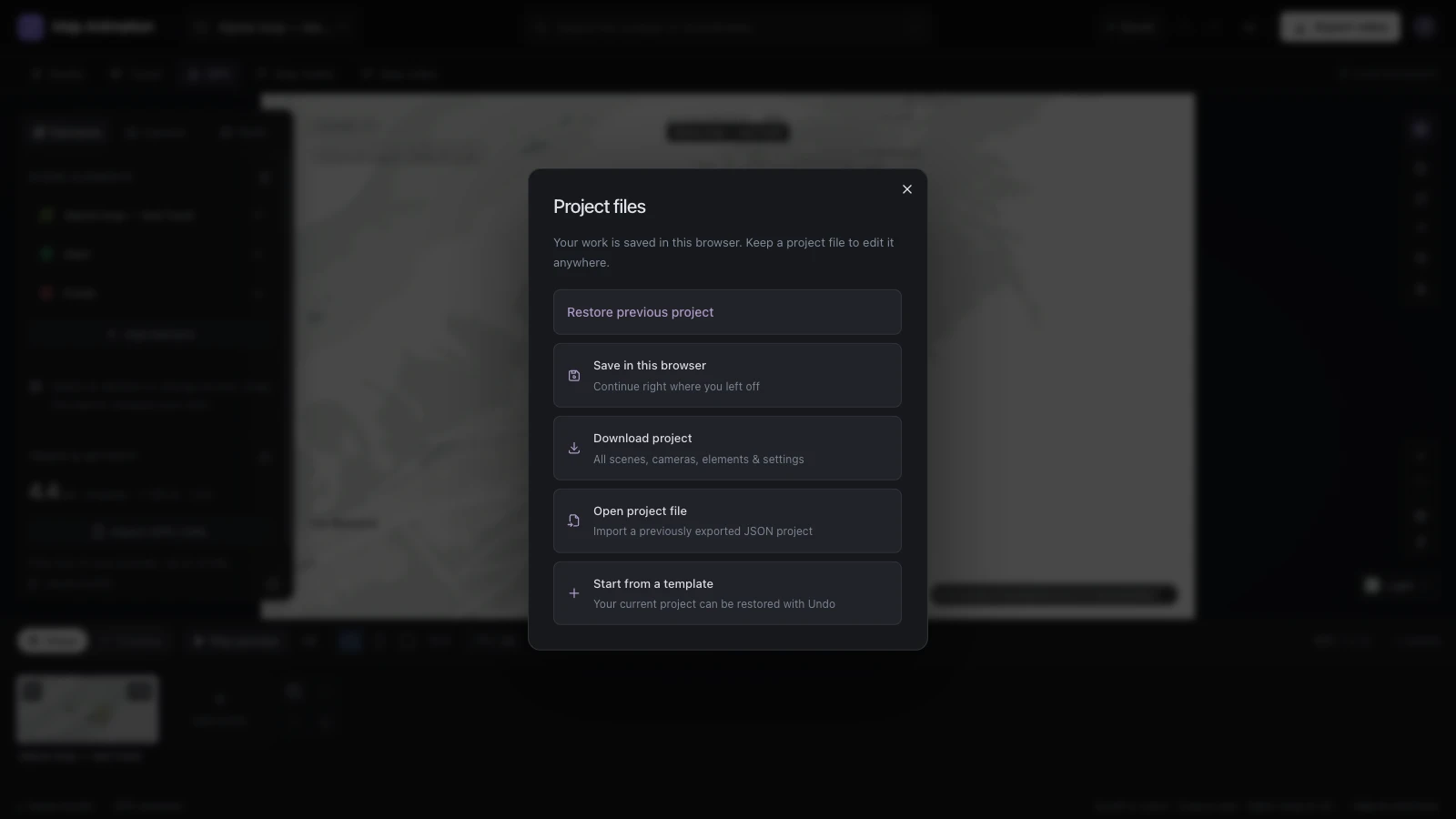
Download the JSON project to preserve imported track data, labels and camera settings in an editable copy. Reopen the GPX animator when a shorter recap or different framing is needed, then export another version without importing the activity from scratch.
Open the editorChoose a GPX or KML file above and inspect its route in the GPX animator. Check the start, finish and detailed turns before refining the presentation.
Choose a map style, frame the route and set the scene duration. Preview the GPX animator sequence to check that the camera and progress remain easy to follow.
Set the format, resolution and frame rate, then export from the GPX animator. Download a JSON project when you want to retain editable track and camera settings.
Import a GPX or KML file up to 10 MB containing one continuous track. Prepare separate segments as a single track before import. This workflow follows a recorded journey; it does not automatically join unrelated routes.
The GPX animator reads your recorded coordinates, accepting up to 250,000 original points and displaying up to 2,000. The visible path may be simplified, so inspect detailed turns after import. Use the preview to check that the route still communicates the activity you want to explain.
Replay uses recorded timestamps when they are usable. Without them, progress follows distance along the route. Scene duration determines the length of the video, so a long ride can become a short recap without claiming that playback represents the original activity duration.
Yes. Import a continuous track from a hike, run or ride and review its shape before editing. Use the GPX animator to choose the camera view and replay duration. Add labels where they help viewers recognize important places, then export the sequence alongside your activity footage.
The track panel shows distance and elevation gain, plus recorded duration when usable timestamps are present. These describe the supplied activity, while scene timing controls the presentation. Review the track itself when a missing timestamp or a simplified section changes how you interpret the numbers.
Export MP4 or WebM at 720p or 1080p with 24, 30 or 60 frames per second. Choose landscape, portrait or square framing. GPX animator videos can run up to 120 seconds; use PNG for a still frame and keep the project for another editable version.
Track parsing and video rendering happen in your browser. Map imagery still needs an internet connection. Download a JSON backup, or explicitly save a private account project after sign-in. GPX animator manual import, editing and local export do not require an AI drafting request.
Yes. Import the saved JSON project to change camera views, scene duration or labels, then export a new video. A GPX animator project retains editable track and presentation data; the finished video does not. Keep both when you want a ready-to-share clip and a useful source for later revisions.

Import the journey you recorded, give it a clear view and pace, then export a replay that fits your activity story.
Animate your recorded route