Keep the stop order
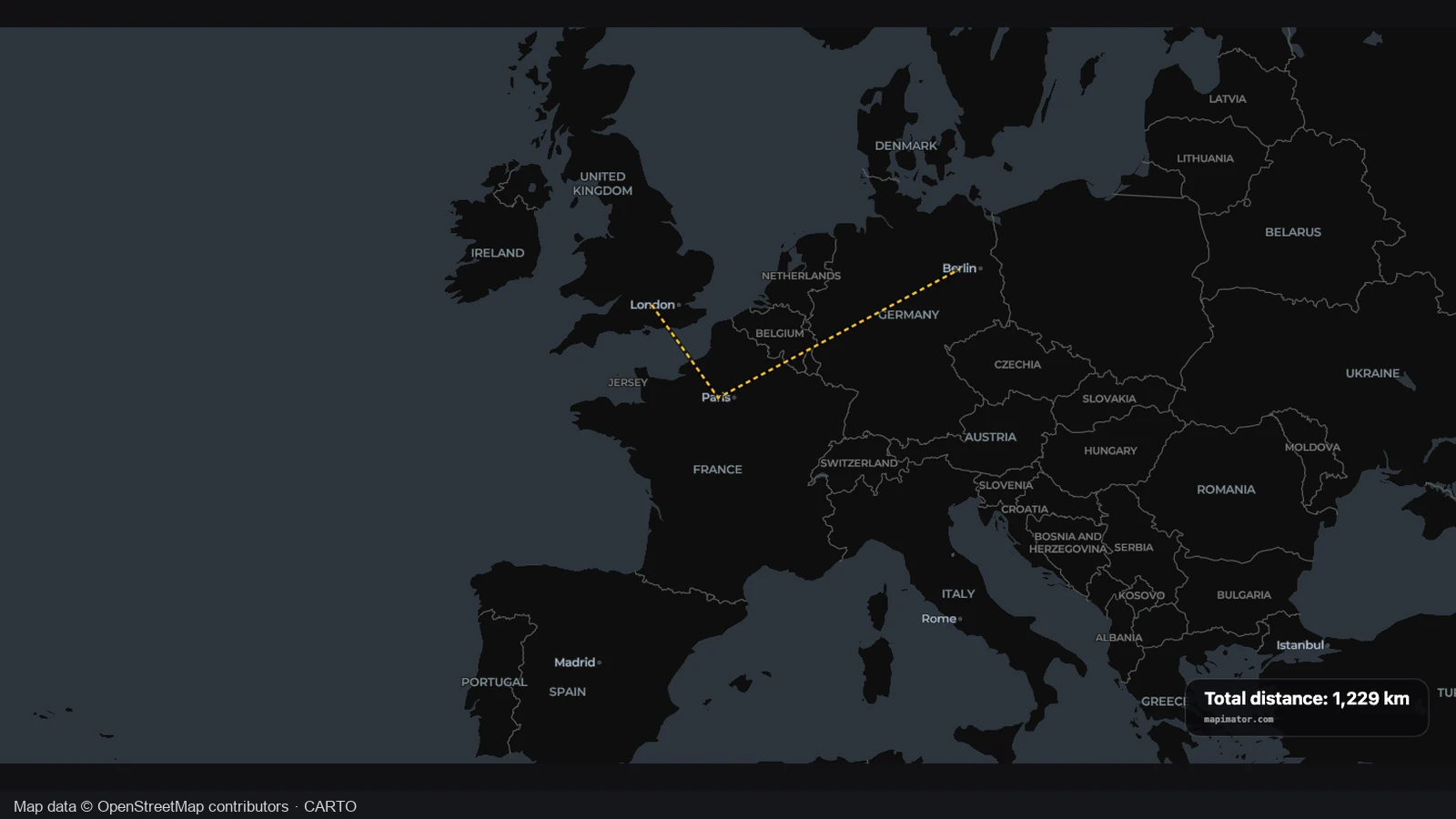
The Google Maps animation importer reads ordered stops from supported full directions links. Review the same journey sequence in Studio rather than rebuilding it from memory.
Keep the places you already planned and turn them into a moving story. Start a Google Maps animation from a directions link or compatible map file, then refine the journey in Studio.
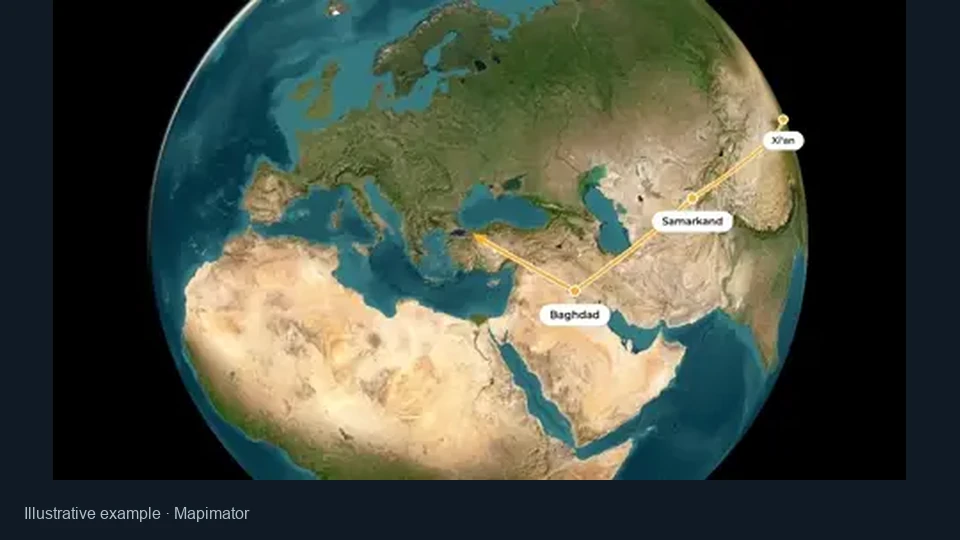
Compare the opening frame of a flight route with its position nine seconds later. Movement and framing can turn a planned connection into a geographic sequence viewers can follow.
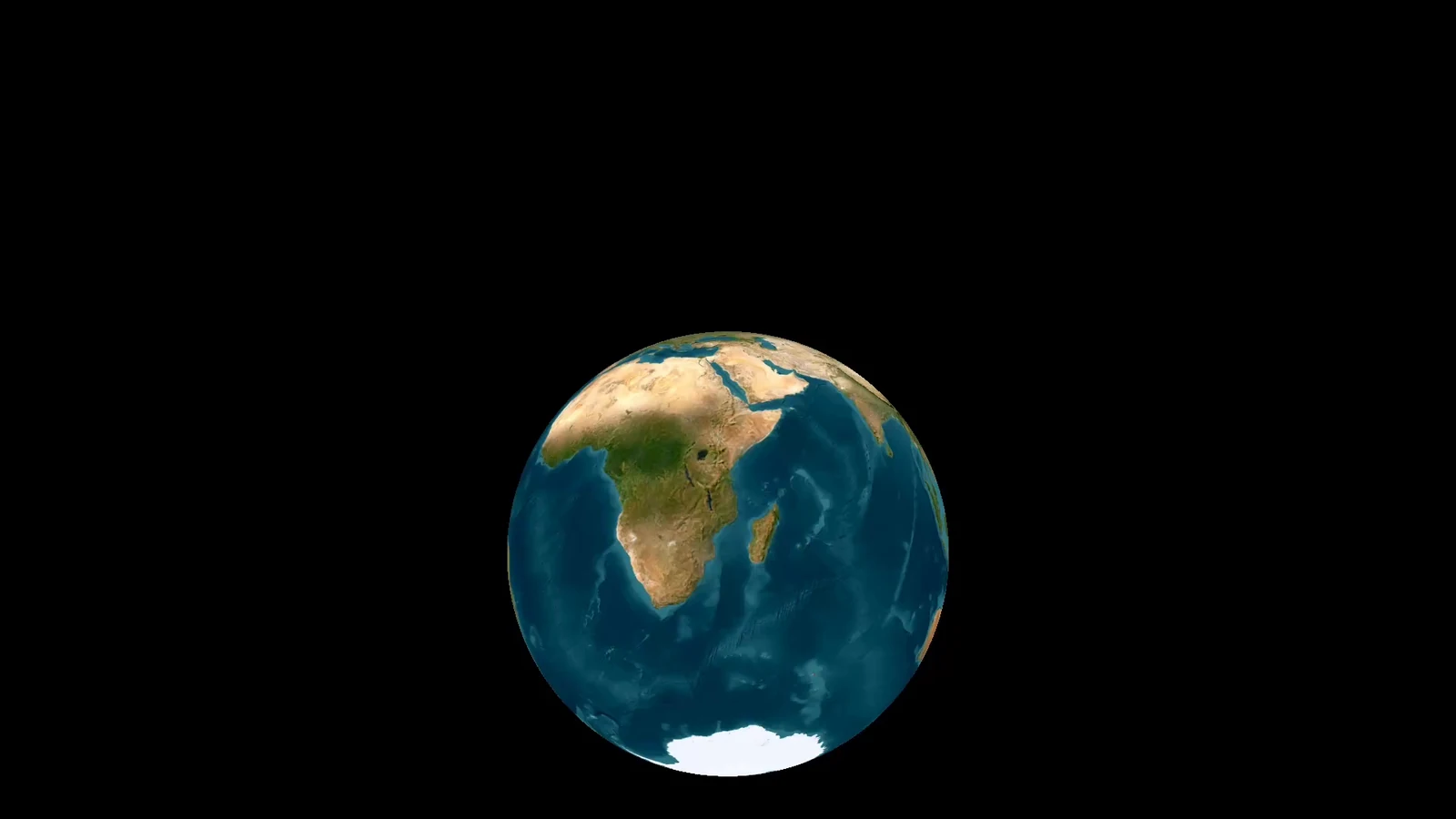
The opening frame establishes the journey’s starting view before the route has progressed. A clear first shot helps viewers locate the departure and understand the geographic scale, so the movement that follows has a recognizable point of reference.
Nine seconds later, the flight has progressed along the route and the geographic story is under way. For your Google Maps animation, review the full sequence in Studio and adjust timing and camera views so the connection remains understandable.
One geographic journey
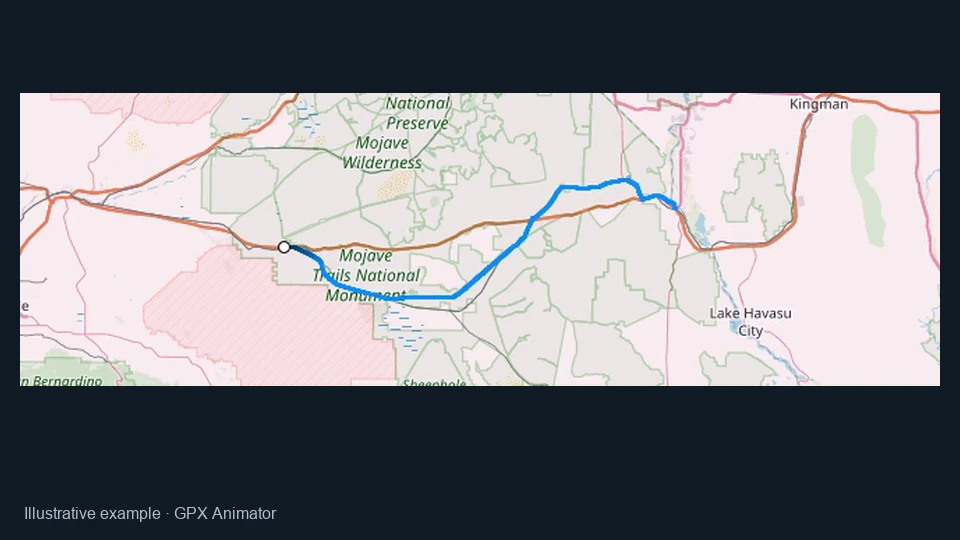
The still and video show the same flight sequence at different moments. Watch the full movement as well as the endpoint when deciding how to frame and pace your own route.
Use your existing route as a practical starting point, then keep control of how it is presented. Separate the planned locations from the camera, timing and visual choices of the final video.
The Google Maps animation importer reads ordered stops from supported full directions links. Review the same journey sequence in Studio rather than rebuilding it from memory.
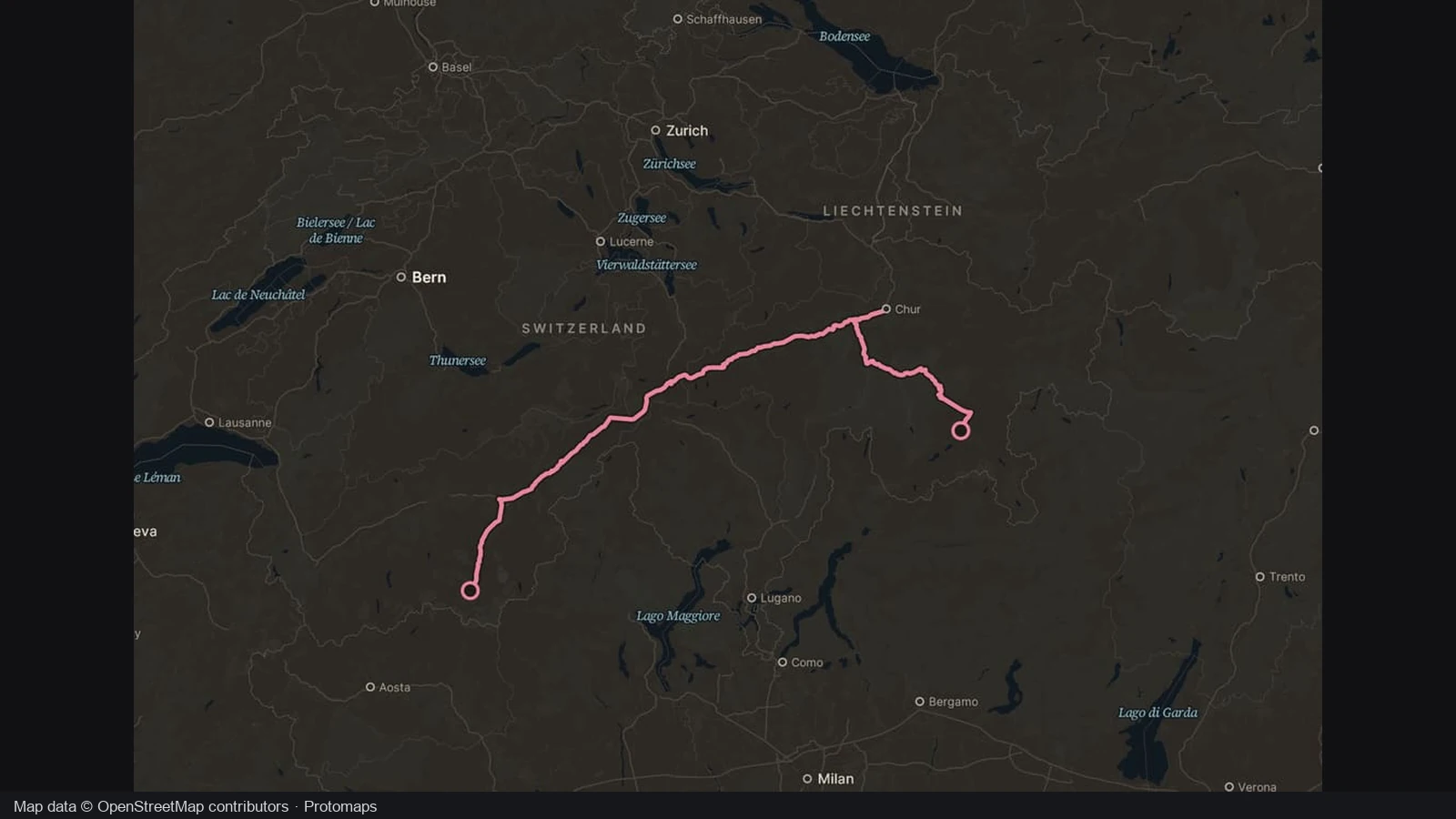
Use a compatible My Maps KML with named places or one connected track. A supported file keeps useful geographic work available when you move from planning to presentation.
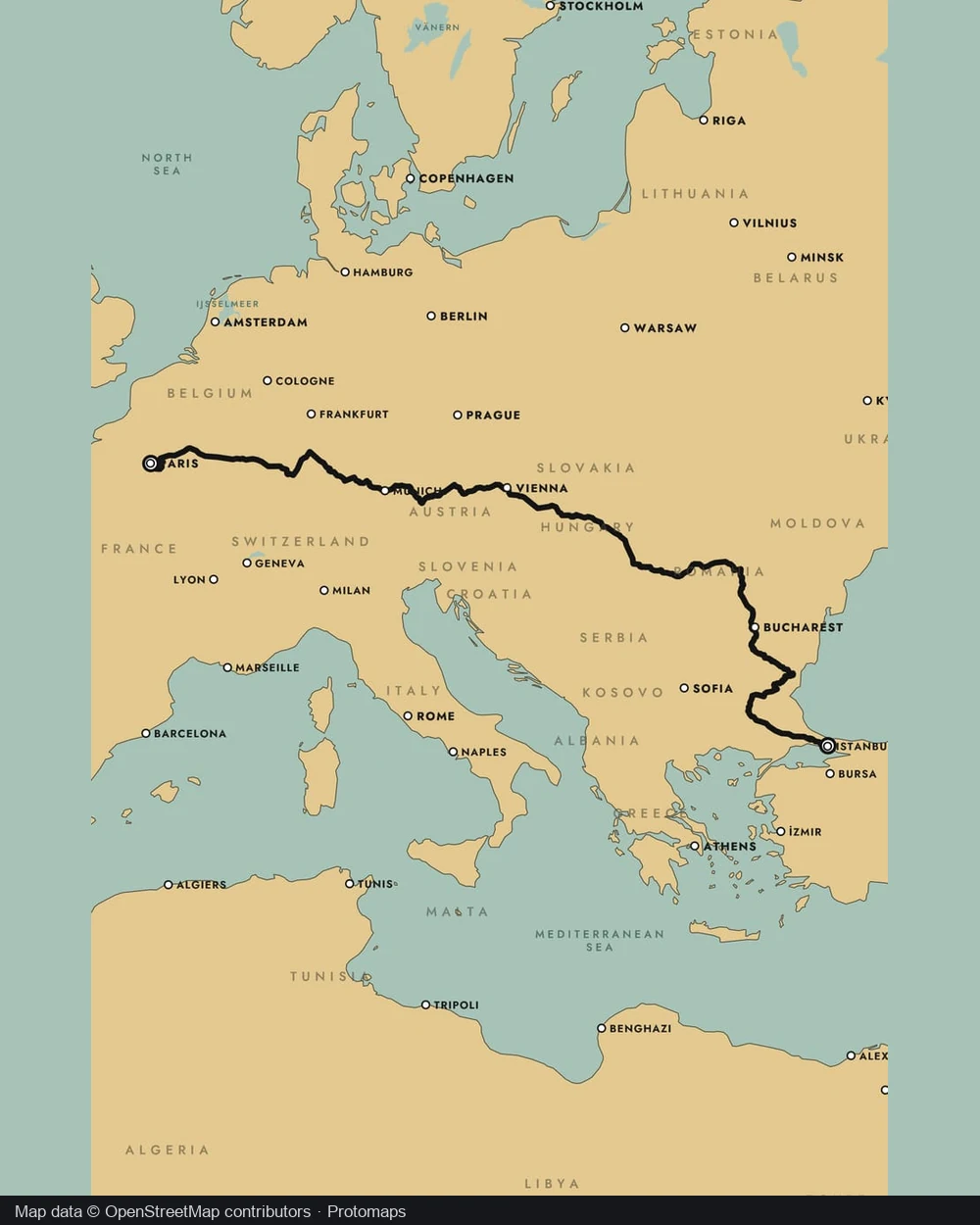
Build a driving route or show a flight arc between locations. Google Maps animation scenes remain editable, so the visual connection can match the story you intend to tell.
Adjust camera views and timing in Studio before export. Make the journey understandable for a viewer who has not explored the original directions or opened your planning map.
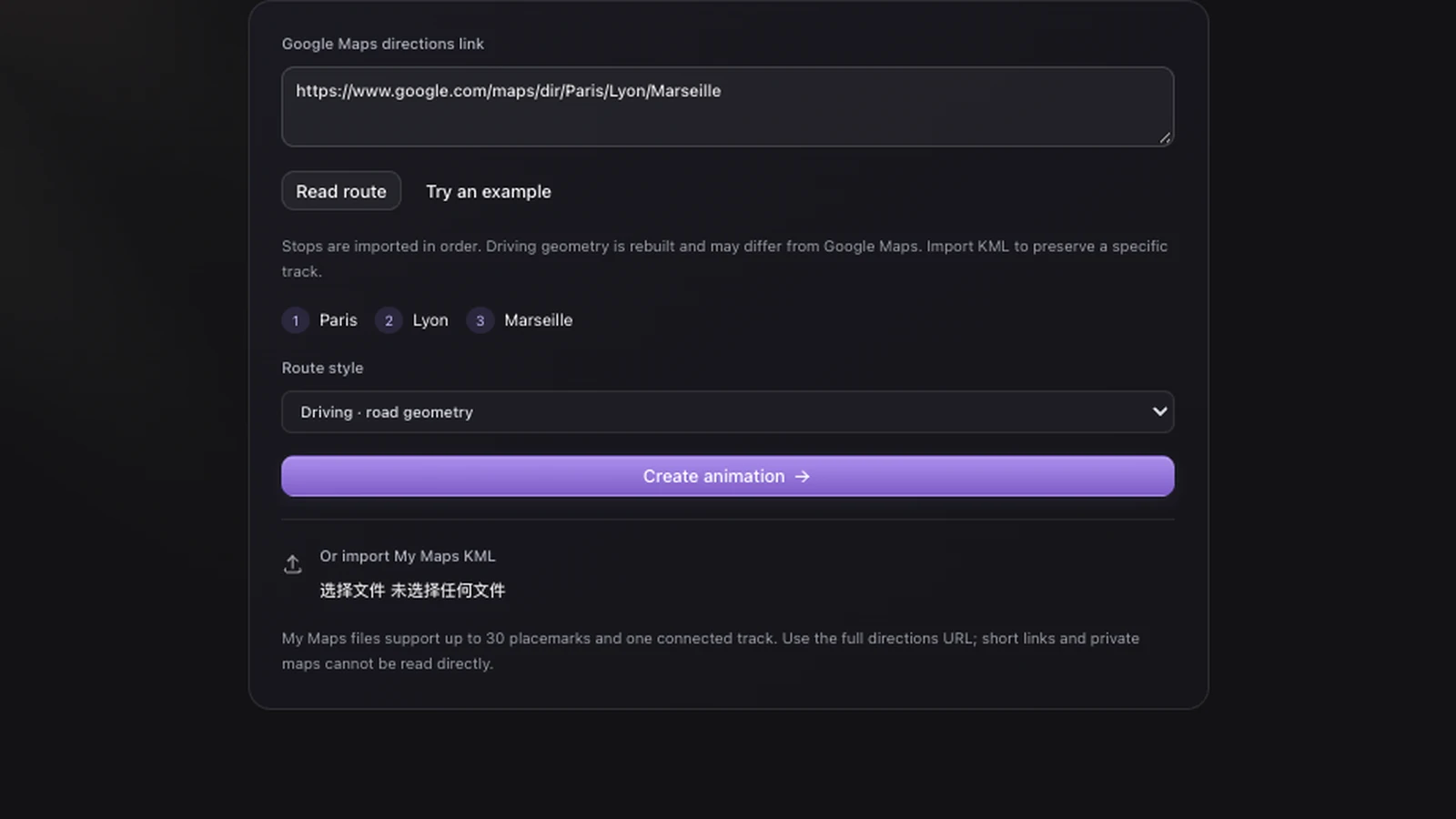
Paste the complete Google Maps directions URL and review the extracted locations. The Google Maps animation workflow supports two to eight ordered stops, giving a short itinerary an editable starting point without requiring you to search for each place again.
Import your map route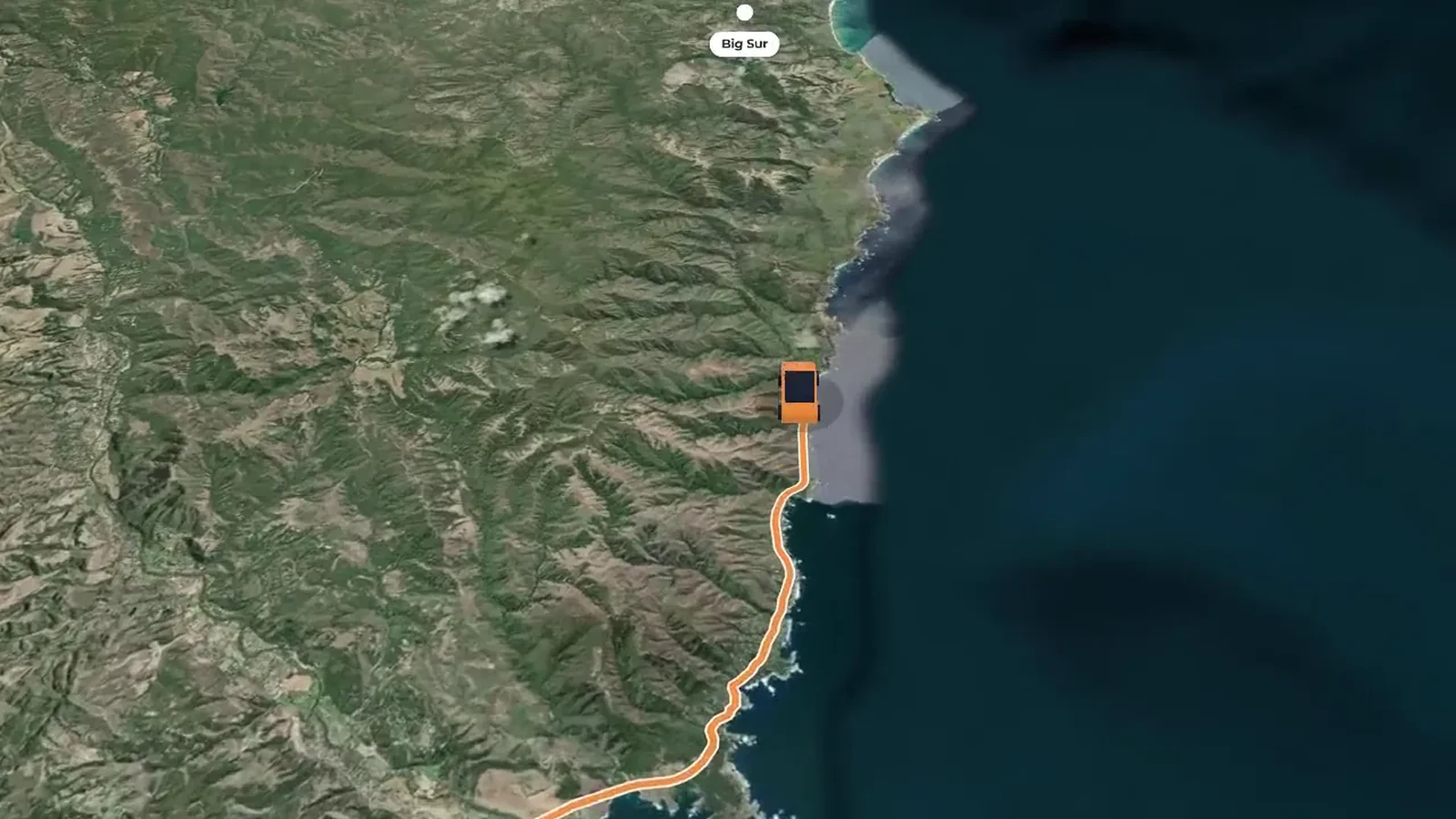
Import compatible My Maps KML with place markers or a connected track. Google Maps animation uses that geographic data as a starting point, so you can inspect the places or route before choosing how to present the journey in Studio.
Import your map route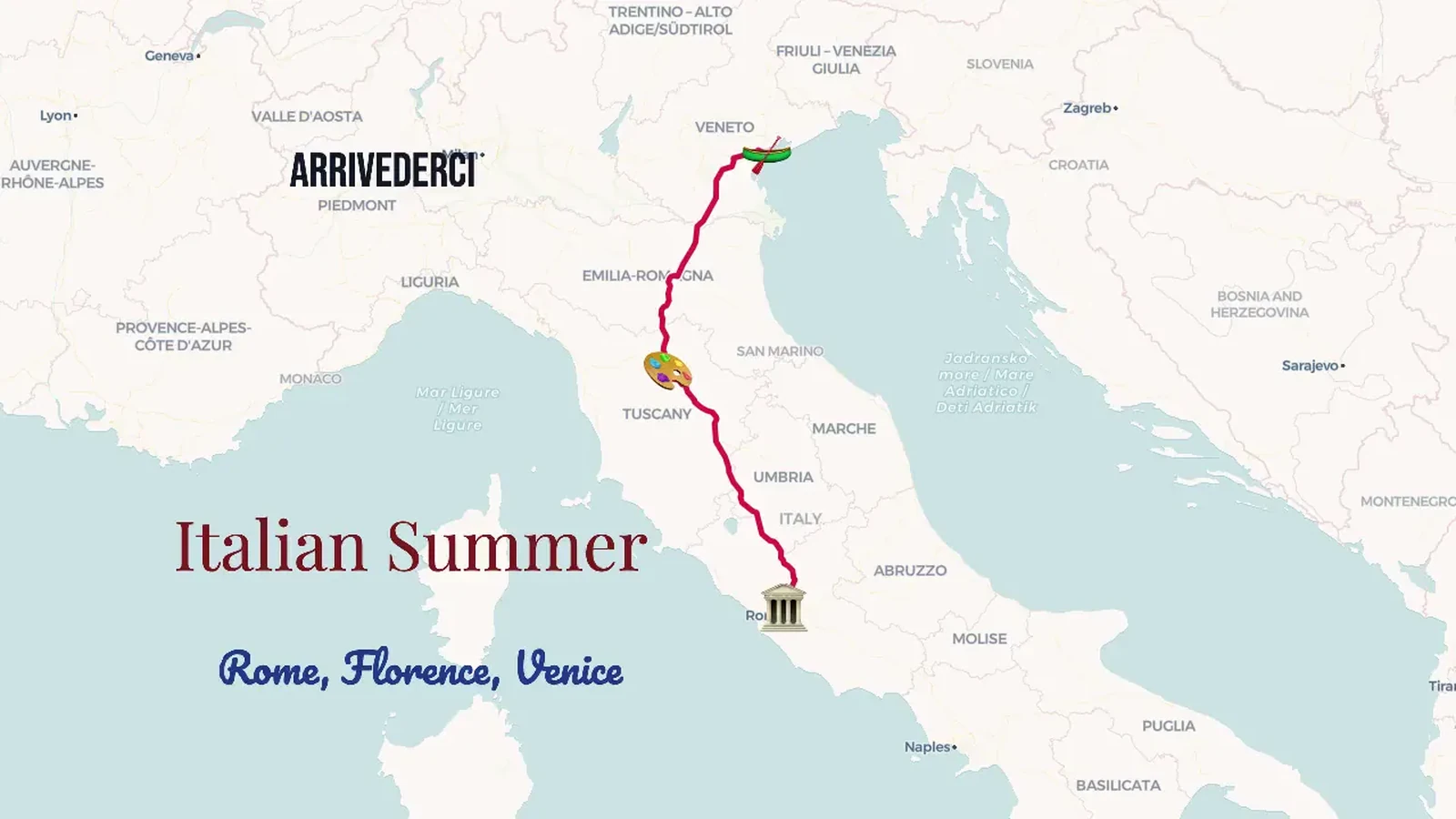
Choose a driving connection or a flight arc and inspect its shape in the map. Google Maps animation rebuilds driving paths with the workspace routing service, so compare the result with your intended itinerary before refining labels, camera angles and scene timing.
Import your map route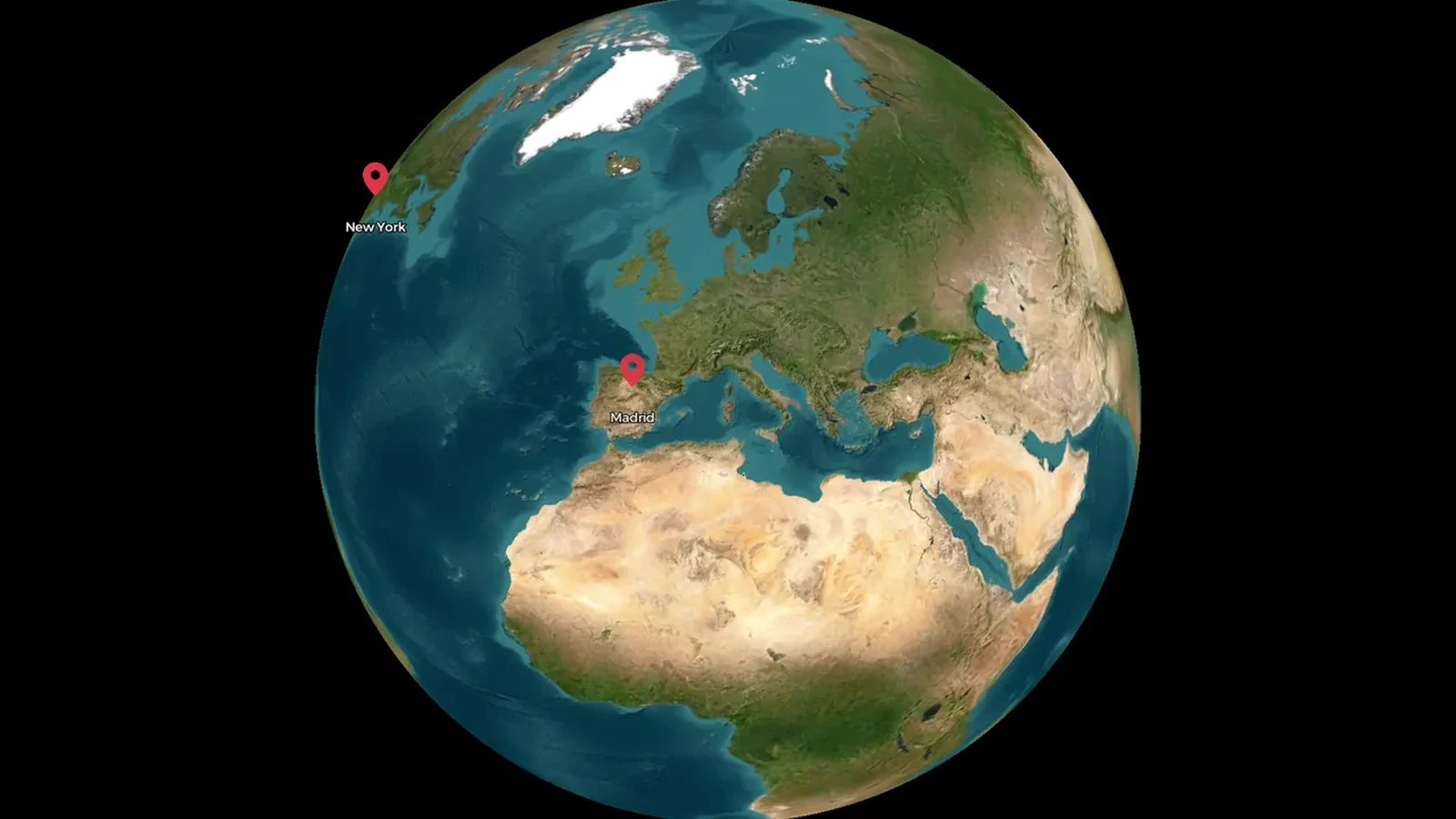
Choose views that make the journey’s locations easy to understand at the scale of your story. Preview the Google Maps animation in Studio, then adjust camera and timing before exporting the video and retaining an editable project for later changes.
Import your map routeStart Google Maps animation with a full directions link or compatible KML or GPX. Check the extracted stops and choose driving or flight arc where offered.
Open Studio, inspect the route and adjust labels, scene order and camera views. Review the Google Maps animation preview to make sure the journey is easy to follow.
Choose the supported video settings and export your Google Maps animation locally. Save the editable project so a changed itinerary does not require importing everything again.
Start Google Maps animation with a full directions URL, compatible My Maps KML or supported GPX/KML track. The importer brings places or geometry into this workspace. Review the route, choose its visual presentation and prepare scenes for the video.
Use a complete directions URL containing the locations. Shortened and private links cannot be read. Export compatible KML from My Maps instead: Google Maps animation needs the actual place or track data, rather than access to a private interface.
Google Maps animation rebuilds driving paths with the workspace routing service, so roads can differ from Google directions. Imported stops retain their order. Inspect the path when your explanation depends on a particular road, detour or border crossing.
Yes. Import compatible My Maps KML with up to 30 place markers or one connected track. Google Maps animation creates editable scenes or uses the track geometry. Complex layers, unsupported shapes and private sharing links are not compatible exports.
Directions links support two to eight stops; compatible My Maps KML supports up to 30 place markers. Track inputs accept one continuous track. KML and GPX files are limited to 10 MB. Check Google Maps animation import feedback before continuing.
Yes. Google Maps animation opens as editable scenes and map elements in Studio. Refine labels, route presentation, camera and timing, then preview before export. Importing provides a starting point rather than choosing the final appearance or framing for you.
No. Google Maps animation uses imported locations or geometry in this site’s workspace. It does not record Google’s interface or supply Google Earth satellite imagery and three dimensional flyovers. Choose the look from the actual map style and preview.
Manual imports, editing, project backups and local Google Maps animation export do not consume AI credits. A complete AI draft is a separate optional one credit action. You can review and export an imported route without requesting a draft.

Start a Google Maps animation with your planned places, refine the journey in Studio and export a video your audience can follow.
Import your map route